> ## Documentation Index
> Fetch the complete documentation index at: https://docs.getjuno.com/llms.txt
> Use this file to discover all available pages before exploring further.
# Scheduling
> Juno manages its own work schedule, planning recurring work or just one-off tasks.
The problem with generic AI tools is that they do the work once, then forget about it. That's not how high-value works get done though, often it takes multiple work sessions across a period of time.
That's why Juno has the ability to schedule its own work week, combining both one-off or recurring tasks to create value even when you're not communicating with it.
## Use cases
* Weekly or monthly reporting
* Recurring audits and monitors
* Follow-up reminders
* Routine data pulls and summaries
* Scheduled checks across websites, campaigns, or connected tools
## Viewing your agents schedule
### For specific tasks
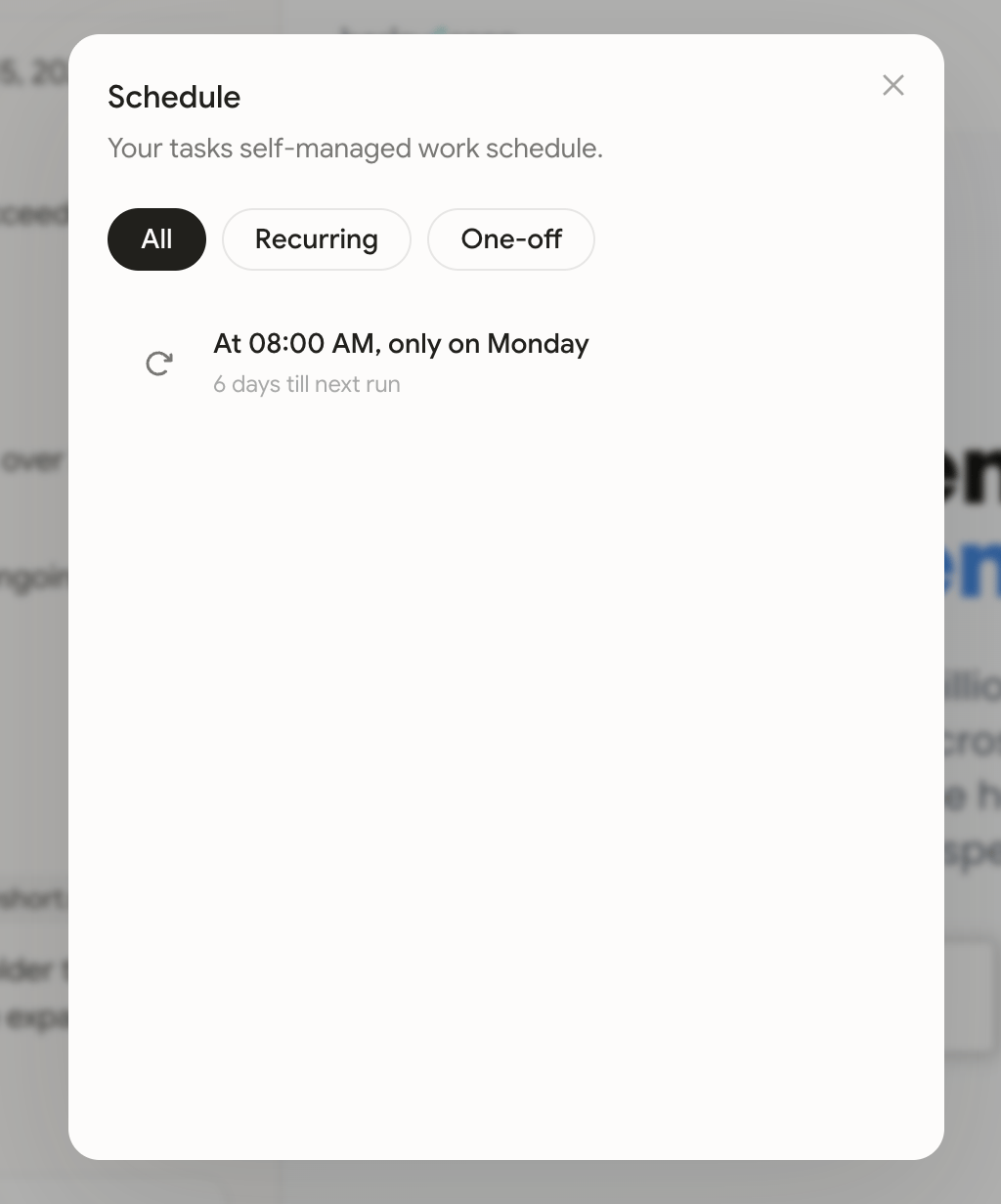
To view Juno's schedule for a specific task, ensure that you are on the tasks page and then use the calendar icon in the top-right of the page.
 ### For all tasks
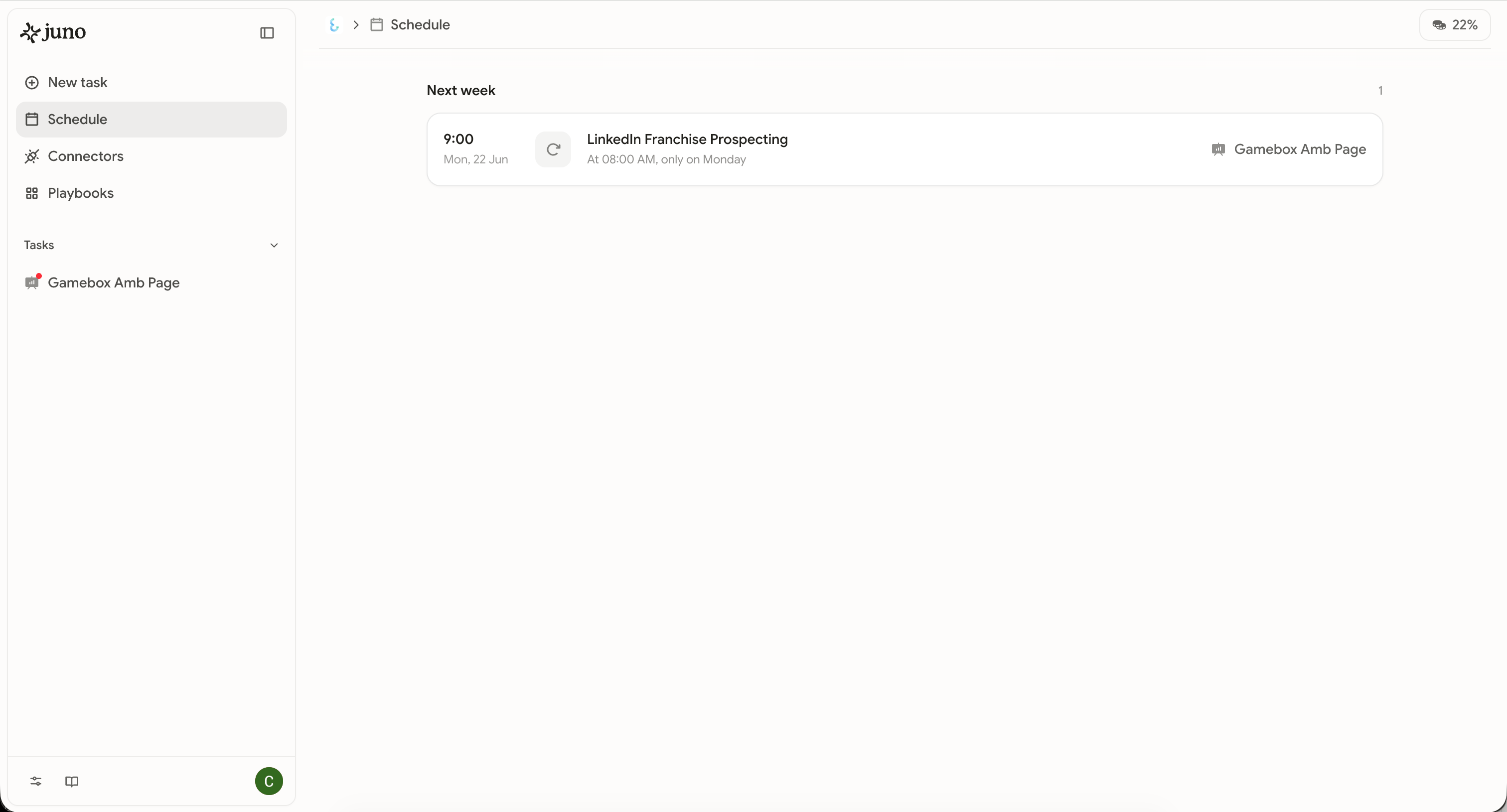
To view scheduled work across all tasks, head to the '**Schedule**' page from the side navigation. Clicking on an individual schedule will take you to the original task to manage this work.
### For all tasks
To view scheduled work across all tasks, head to the '**Schedule**' page from the side navigation. Clicking on an individual schedule will take you to the original task to manage this work.