> ## Documentation Index
> Fetch the complete documentation index at: https://docs.getjuno.com/llms.txt
> Use this file to discover all available pages before exploring further.
# Routines
> Juno manages its own work schedule, planning recurring work or just one-off tasks.
The problem with generic AI tools is that they do the work once, then forget about it. That's not how high-value works get done though, often it takes multiple work sessions across a period of time.
That's why Juno has the ability to schedule its own work week, combining both one-off or recurring tasks to create value even when you're not communicating with it.
## Use cases
* Weekly or monthly reporting
* Recurring audits and monitors
* Follow-up reminders
* Routine data pulls and summaries
* Scheduled checks across websites, campaigns, or connected tools
## Viewing your routines
### For specific tasks
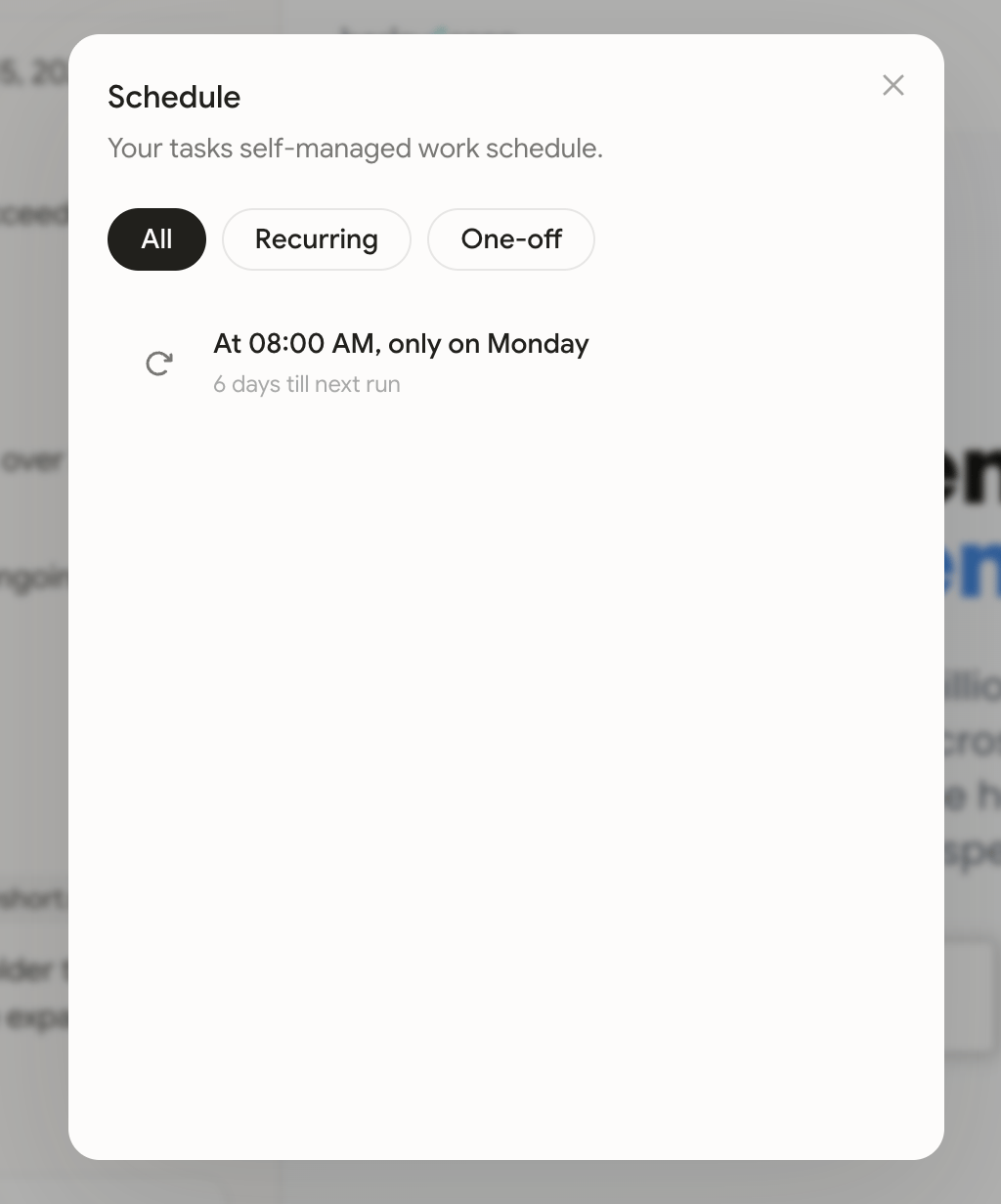
To view Juno's schedule for a specific task, ensure that you are on the tasks page and then use the calendar icon in the top-right of the page.
 ### For all tasks
Open [**Routines**](https://app.getjuno.com/routines) from the side navigation to view recurring and one-off work across your space. Look for the calendar icon with dots. Switch between calendar and list views, then click an item to edit its name and prompt for future runs.
### For all tasks
Open [**Routines**](https://app.getjuno.com/routines) from the side navigation to view recurring and one-off work across your space. Look for the calendar icon with dots. Switch between calendar and list views, then click an item to edit its name and prompt for future runs.